In this article, we'll explain how to set up and use the Emergency Feed app for displaying emergency messages on your digital signs.
Some Emergency Alert Systems or Emergency Mass Notification Systems push out RSS feeds.
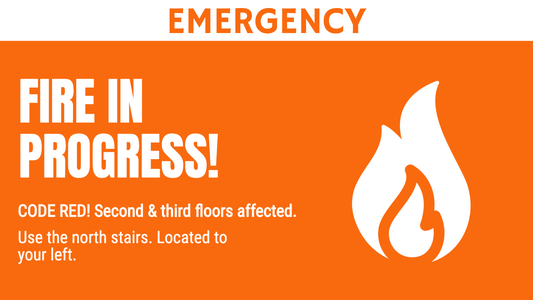
Using OptiSigns Emergency Feed app, you can have OptiSigns listen to an RSS feed, filter for certain types of messages, and target locations, and if there's matching content, it will take over screens to display emergency messages.
When the emergency is over, the feed returns blank, or no more matching content. OptiSigns will return to playing signage content as usual.
What You'll Need
- An OptiSigns-capable device
- An OptiSigns Pro Plus plan or higher
- A screen, set up and paired
Creating an Emergency Feed App Asset
On the OptiSigns portal, go to Files/Assets → Apps.
Select Emergency Feed:
These are the options, and what they do. Any edits made to these options should be automatically reflected in the Preview pane on the right. The Preview can be displayed in either Landscape or Portrait format.
- Name: Name of your assets. This is for organizational purposes and will not be displayed on your screens.
- RSS Feed URL: The URL of the Emergency RSS feed you wish to display.
- Target: Select Screens or Tags, then choose the proper one.
- Status: Choose between Active and Inactive states for the feed.
- Check RSS Feed Every (seconds): Set the amount of time in seconds for the app to update the Emergency Feed.
- Preview Window: This shows how your Emergency Feed asset will look when pushed to a screen.
- Orientation Options: Change between Landscape and Portrait orientation for the Preview.
Theme Settings
Click Theme Settings to expand the field and provide a slate of new options:
-
Background Image: Lets you choose a Background image for your RSS feed. When Custom is selected, it will give you the opportunity to Choose Photo:
This photo must already exist as an asset within OptiSigns.
-
Background Color: Determines the background color. Can be chosen with Hex Code or via color picker:
- Text Color: Determines the text color. Can be chosen with Hex Code or via color picker
- Text Font: Select the font for the text. Defaults to Roboto.
-
Font Size: Choose between Default Font Size, or Custom. When Custom is selected, will provide a new option for selecting the font size.
- Text Alignment/Position: Choose the alignment and position of the RSS text.
- Max Number of Rows: Choose the maximum number of rows to dedicate to the Emergency Feed.
Advanced
Click Advanced to expand the field and provide a slate of additional options:
- Duration (seconds): How long to display each feed item before moving on to the next.
- Title Tag: Message title from the RSS XML feed. The default is <title> - you can change it if your feed is different
- Description Tag: Message content from the RSS XML feed. The default is <description> - you can change it if your feed is different
- Location (Screen Tags): Some RSS can pass locations tag (i.e. emergency in a certain location only). The default tag is <location> - you can change it if your feed is different
- Filter content containing: Filter content based on specific words in the title or description (i.e. "fire"). If any title or description contains the word "fire" (case insensitive), the app will trigger the screen takeover.
- Exclude title containing: this filter will only apply to the title. You can hide all the old feeds by filtering with specific words in the title. I.E: “All Clear”, so after the emergency is gone, all the feeds before this title will be hidden, then the screen will revert to the original content or just display the new content after that.
That's all!
If you have any additional questions, concerns, or any feedback about OptiSigns, feel free to reach out to our support team at support@optisigns.com